
Quick Start
Saving Quotes from Books
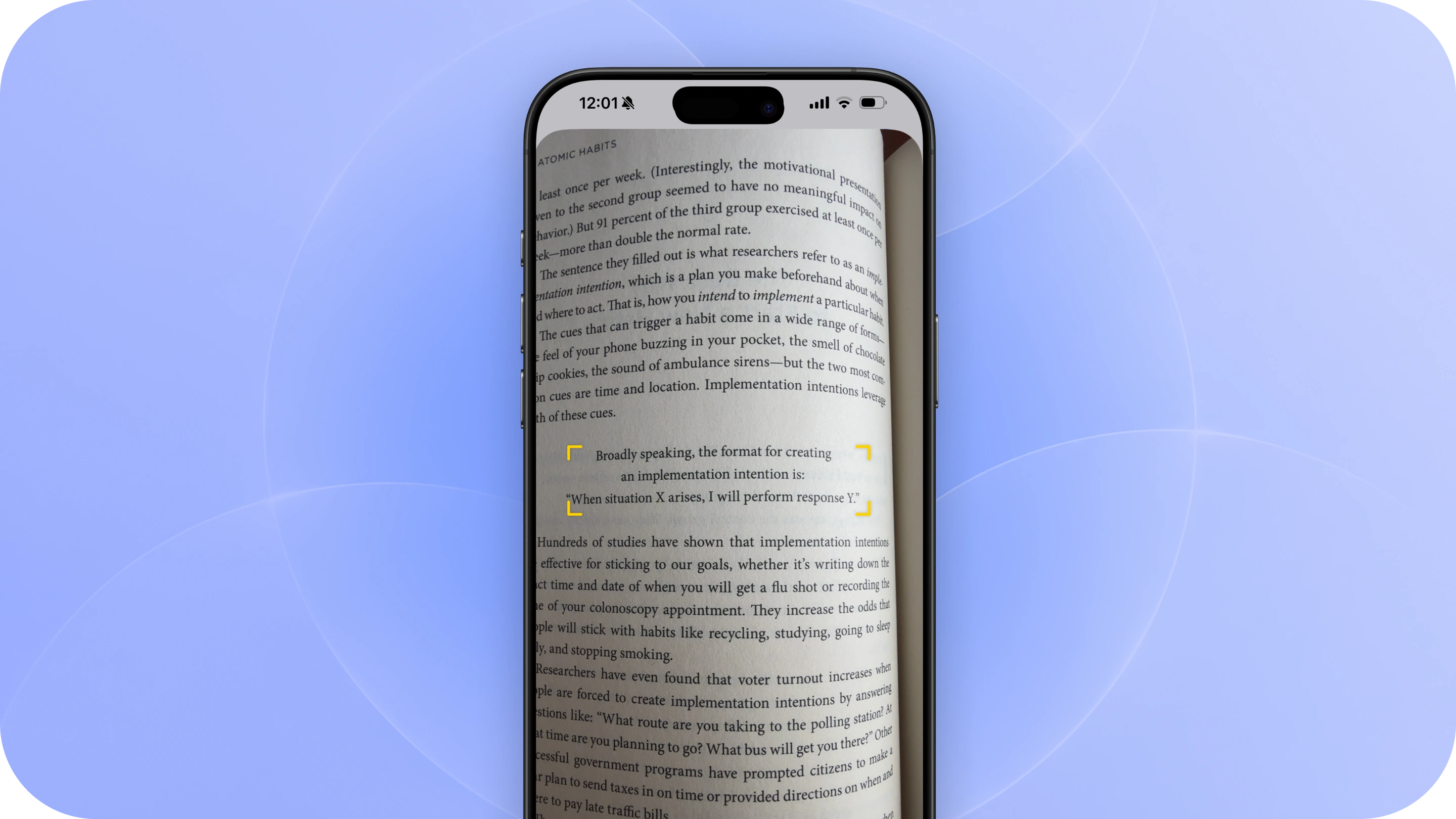
Reading a physical book? You can capture passages in Commonplace using your phone camera.
1. Scan physical text
Create a new quote and tap the Scan button floating on the right side above the keyboard.
Point your camera at the passage you want to save, tap the text on your screen, and scan. Commonplace will turn it into editable text, ready to add to your library.
Give it a quick look to make sure everything was captured correctly, then make any adjustments you need.
Or take a photo
You can also capture a passage using your phone’s regular Camera app.
Take a photo of the page, optionally crop the image to include only the passage, tap Share, and choose Commonplace from the Share Sheet. Commonplace will extract the text from the image so you can choose the passage you want to save.
This can be especially handy when you want to capture something quickly and get right back to reading.
2. Add the book
Once you have your quote, tap Add Source and select Book.
Search for the book by title or author from Commonplace’s library of millions of books. The book’s details and cover will be added automatically.
Keep everything together
You can save another passage from the same book once it’s saved to your account.
All of your quotes from the book will live together, giving you one place to revisit the ideas and passages that stood out to you.
Keep reading
That’s it. Once your quote is saved, you can jump right back into what you were reading.